AES-256-GCM · Argon2id · Local, FTPS and R2 targets
Encrypted Contents and names protected
Compressed Used NTFS/FAT32 space can be selected
Verifiable Authenticated archives
Recoverable Dedicated recovery workflow
Clear tools, one application
Backup without the usual clutter.
Disk images and cloning
Create encrypted disk images and use separate cloning and data-migration tools. Compatibility depends on disk layout and filesystem.
Files and cloud folders
Encrypt documents, photos, Google Drive folders and iCloud content already downloaded to the PC.
Schedules and retention
Run hourly, daily or weekly backups and remove completed archives after your chosen retention period.
Remote encrypted copies
Upload verified encrypted archives to FTPS or S3-compatible storage such as Cloudflare R2.
Live system backup
Capture Windows volumes with VSS. Recovery media and physical restoration require additional validation during early access.
Guarded disk tools
Disk operations require explicit target confirmation. SSD erase support depends on the device and controller.
Three steps
Choose. Protect. Verify.
1
Select the source
Pick files, folders, a Windows volume, or a physical disk.
2
Choose where it lives
Keep it locally or send the encrypted result to a remote target.
3
Verify and recover
Validate the archive and use the guided restore workflow when needed.
See how it works
What can SafeDSX do for you?
More than an archive: password-protected contents, manageable schedules and a recovery workflow for getting your files back.
Protect private files
Store the contents and names of your photos and documents in encrypted archives.
Stop relying on reminders
Choose the source, destination and start time, then review the last result of your plan.
Check that you can recover
Verify the archive and restore sample files. Keep a copy on a separate disk.
1. Select files or a folder
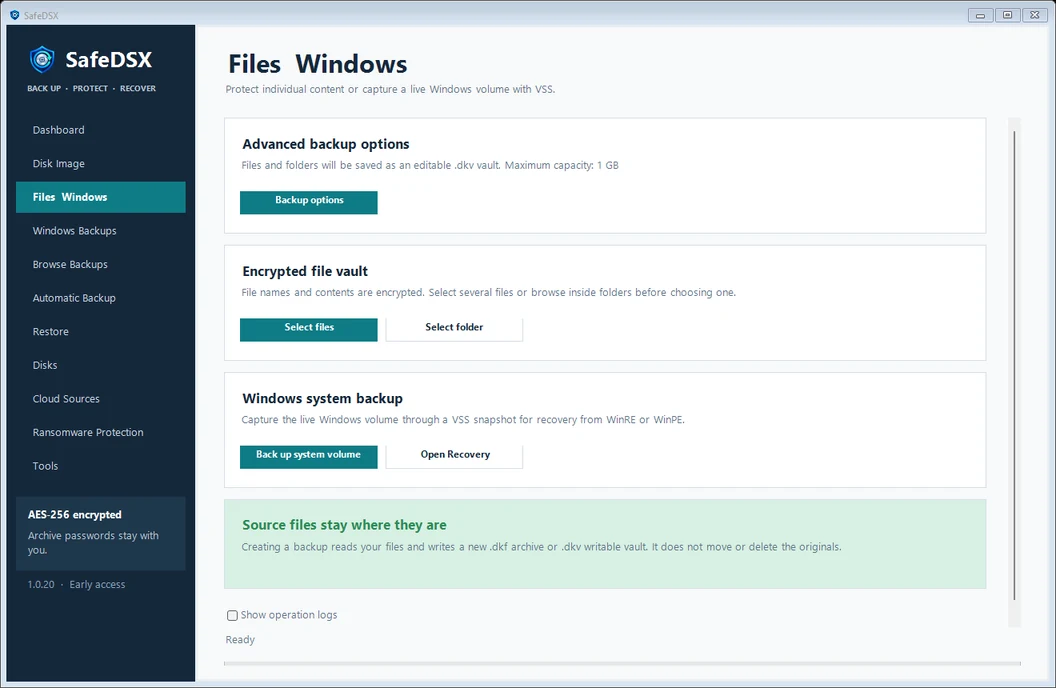
Choose your source in Files and Windows, select a destination and protect the backup with a strong password.
2. Manage your plan
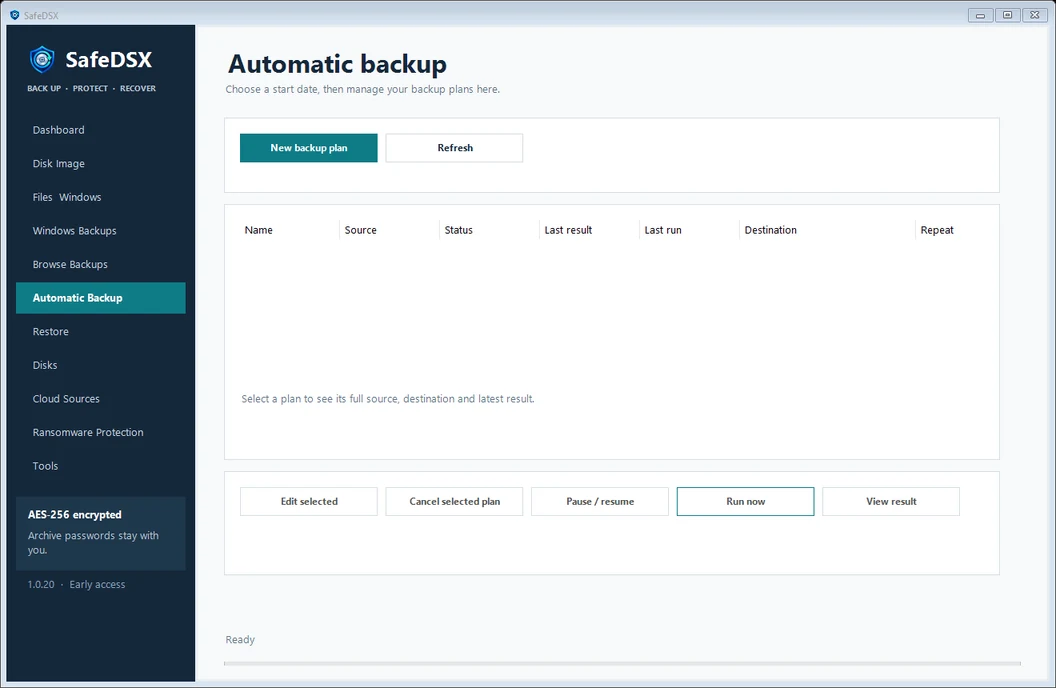
Create, edit or pause a plan in Automatic Backup and check its last result.
3. Get your files back
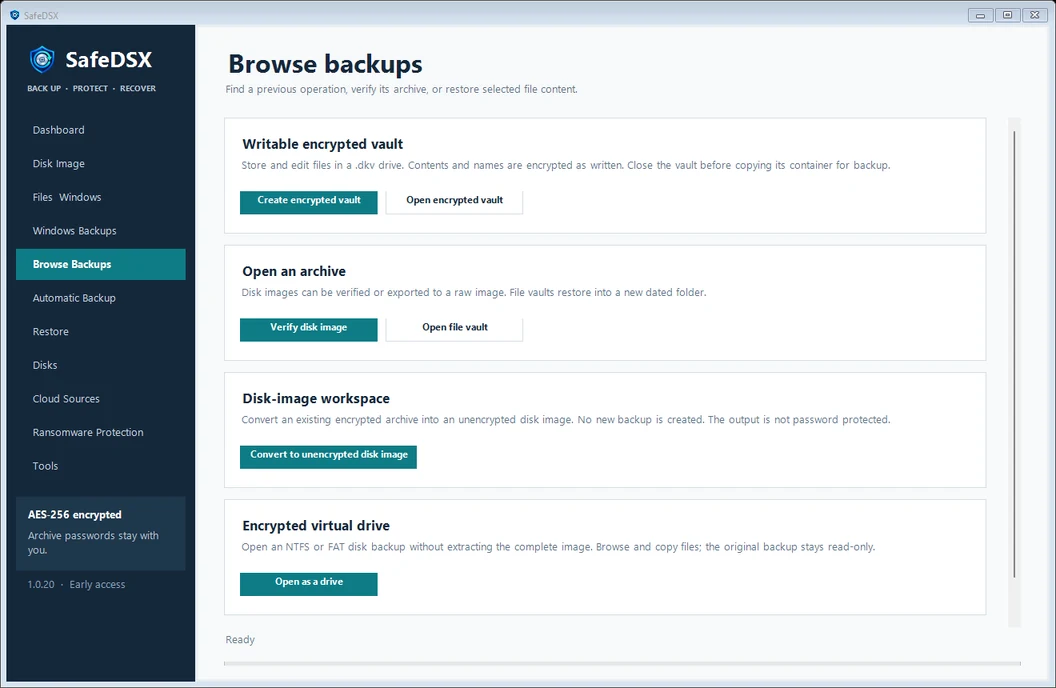
Open an archive in Browse Backups. Explore supported disk images as virtual drives.
Narrated product walkthrough
A short introduction with screenshots and synthetic English narration. This is an illustrated tour, not a live operation recording. Captions and a transcript are included.
Read the video transcript
A recovery plan for your files
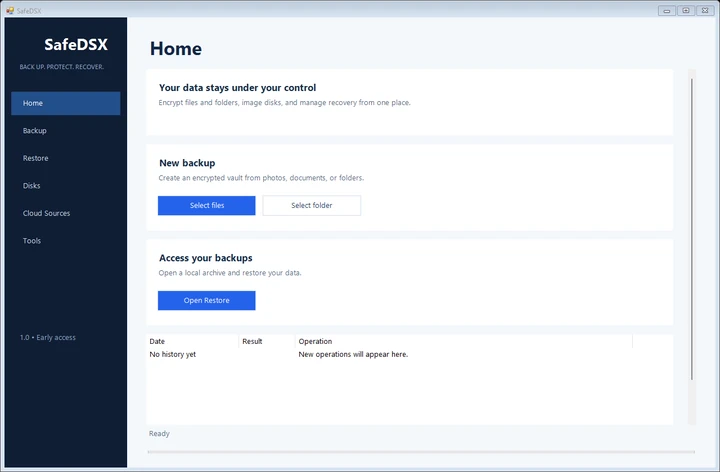
SafeDSX helps you protect documents, photos and Windows backups in one application. This illustrated tour introduces encrypted backups, automatic schedules and recovering your files.
1. Choose your source and destination
In Files and Windows, choose Select files or Select folder. Review backup options and save the archive to a different disk. Use a strong password and store it securely. Creating a backup does not move or delete your original files.
2. Choose how to store it
Advanced options let you split an archive into smaller parts. Keep every part together for restoration. Alternatively, manually started file and folder backups can use a writable encrypted vault for adding and editing files later. These two options cannot be combined. This options screenshot is shown in Turkish.
3. Schedule your backups
Create a plan in Automatic Backup. Choose its source, destination, starting time and repeat interval. You can edit or pause plans and check their last result here, instead of starting every backup manually.
4. Verify and recover
In Browse Backups, verify your archive. Open a file vault and extract the files you need into a new folder. Supported disk images can be opened as virtual drives to browse their contents. Always test restoration after your first backup. SafeDSX is in early access. Visit safe d s x dot com for the ninety day evaluation.
SafeDSX is in early access. Test restoration after your first backup and keep your source copy until recovery is verified.
Security by design
Your password stays with you.
SafeDSX derives archive keys with Argon2id and uses AES-256-GCM authenticated encryption. Scheduled backup passwords are stored with Windows machine protection. A SHA-256 checksum is provided for this download; the early-access installer is not yet code-signed.
Questions
Can SafeDSX recover a system disk?
Windows volumes can be captured through VSS. Recovery media must be tested on your hardware before relying on it. Do not replace your existing backup strategy during early access.
Can I copy a larger disk to a smaller one?
Exact disk images need a compatible target layout. Smart Migration for supported NTFS data disks is a separate workflow; fitting the used data alone does not guarantee every disk image can be restored to a smaller disk.
Can SafeDSX recover a forgotten archive password?
No. Keep a separate recovery record. Strong encryption also means there is no password bypass.
90 days to try it free
Simple pricing. No surprises.
Try SafeDSX for 90 days. After your trial, choose a software licence to keep creating backups.
No payment details are required for the trial. Paid subscriptions are not yet available to purchase. After the trial expires, restoring and verifying existing backups remain available. Storage is not included in the software licence.
SafeDSX early access
Version 1.0.21 starts with a 90-day evaluation period.
The installer is not yet digitally signed. Windows may display an “Unknown publisher” prompt, and your browser may warn that the file is not commonly downloaded. Do not disable security protections to remove these warnings. This is an early-access release.